Drive to Reimagine
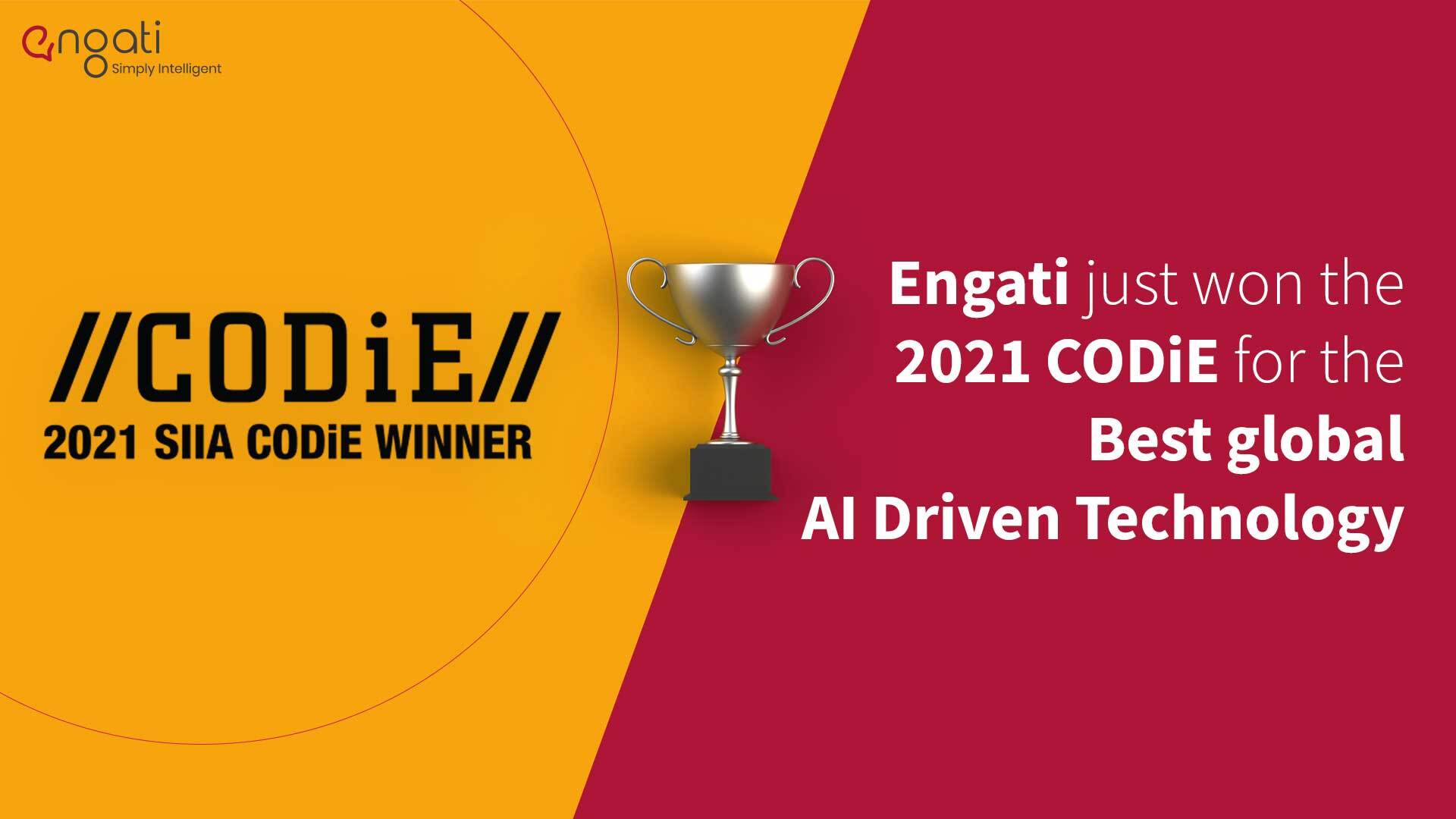
Engati won the 2021 CODiE Award for Best AI Solution
We're so proud to announce that Engati has won the title for the Best Artificial Intelligence Driven Technology Solution of 2021 by the SIIA CODiE Awards.
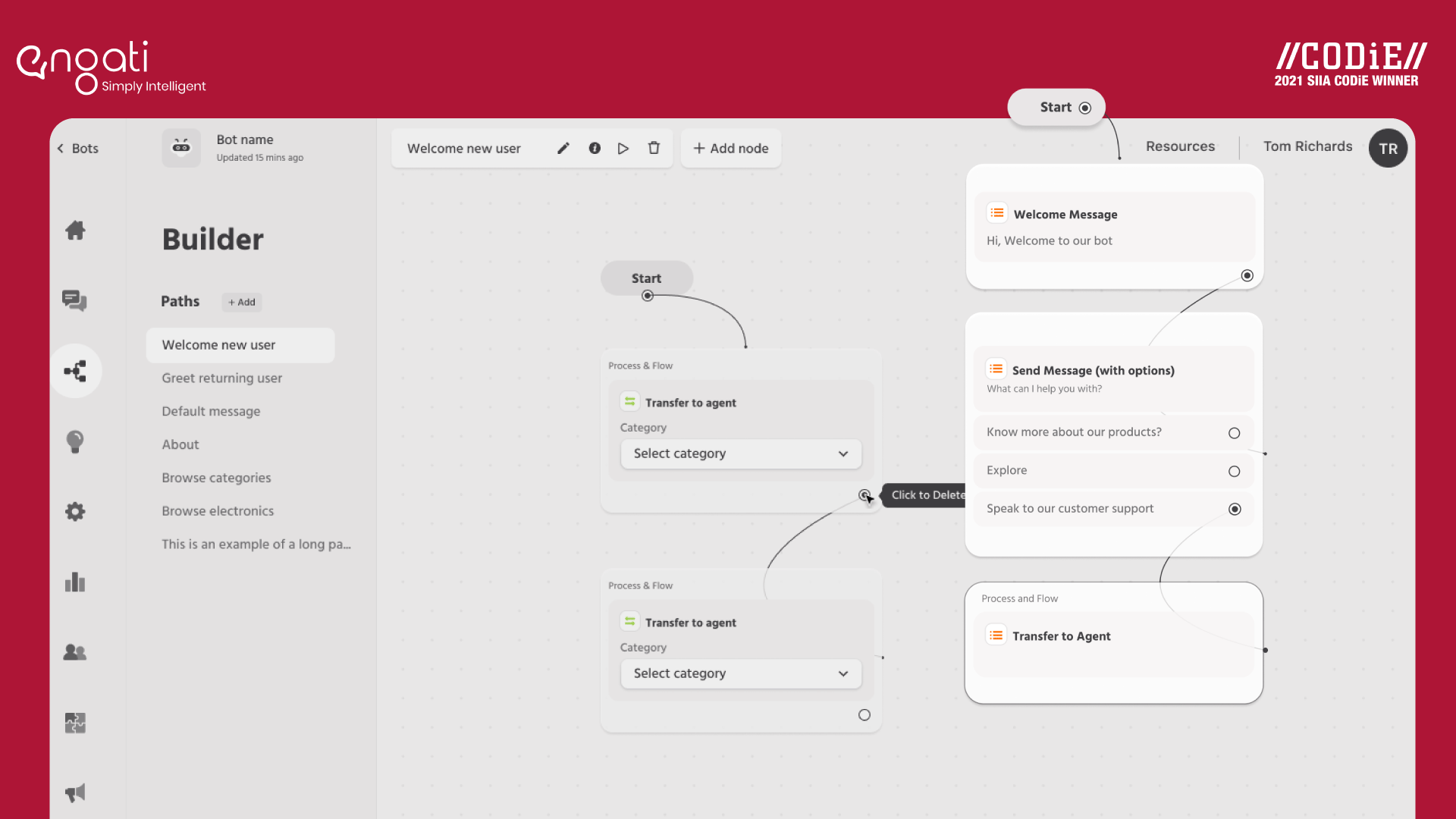
It all started this year.
We’re rolling out a new, simplified version of Engati to make it simpler for you to build solutions that achieve your business goals.
We’ve created a brand new experience, considering every nibble and every byte to accommodate ease of use and convenience for all our customers.
Let's get started.
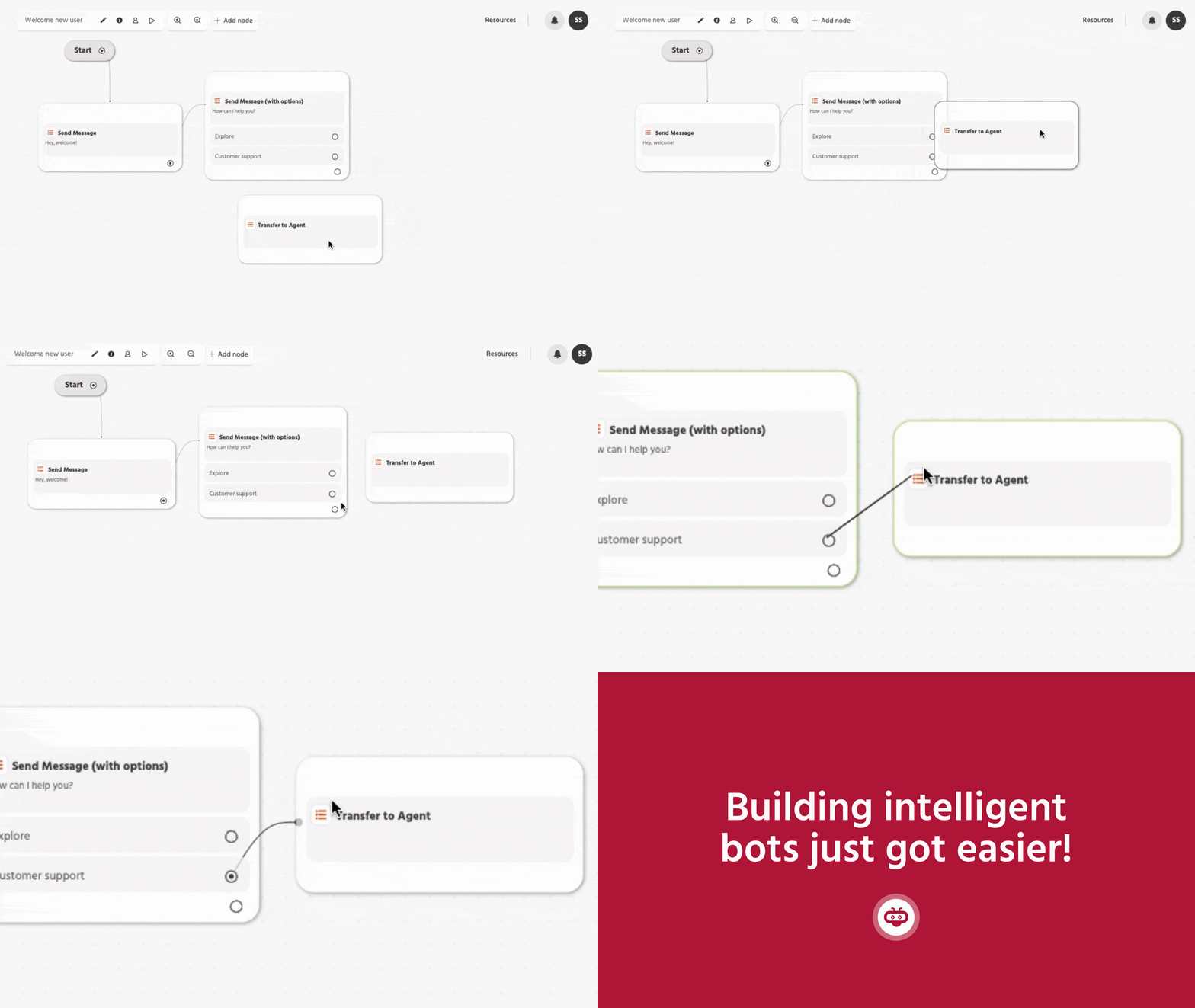
Clicking on the bot card on the home page navigates the portal user to the Bot overview page. A new set of menu items is now available on the left-hand side for navigating across multiple configurations of the bot. You can always navigate back to the Home page by clicking on the link at the top left – ‘< Bots’. The navigation order is as follows:
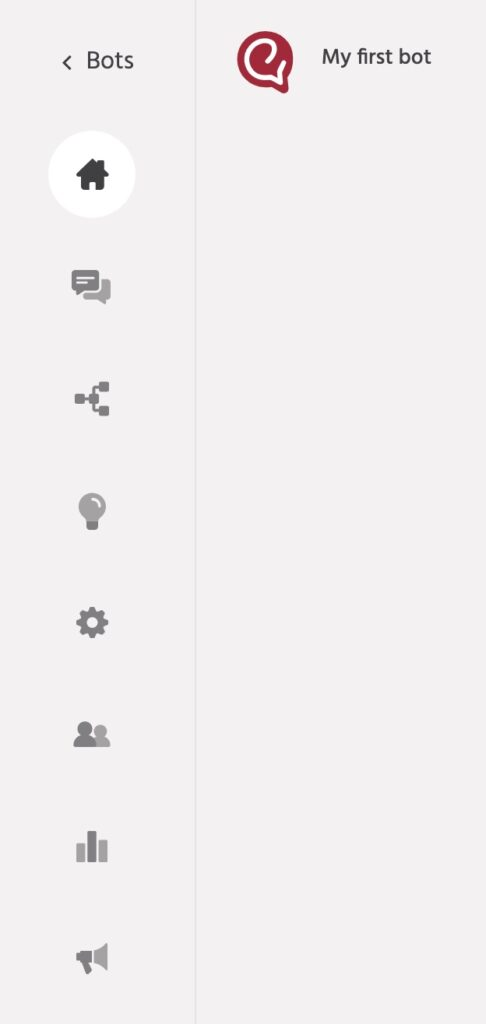
Navigate to the top right and click on the profile icon to view the account level menu. This menu presents the option to view Account settings, Get Professional Help amongst others. You can also upgrade to a higher plan by navigating to Account settings.
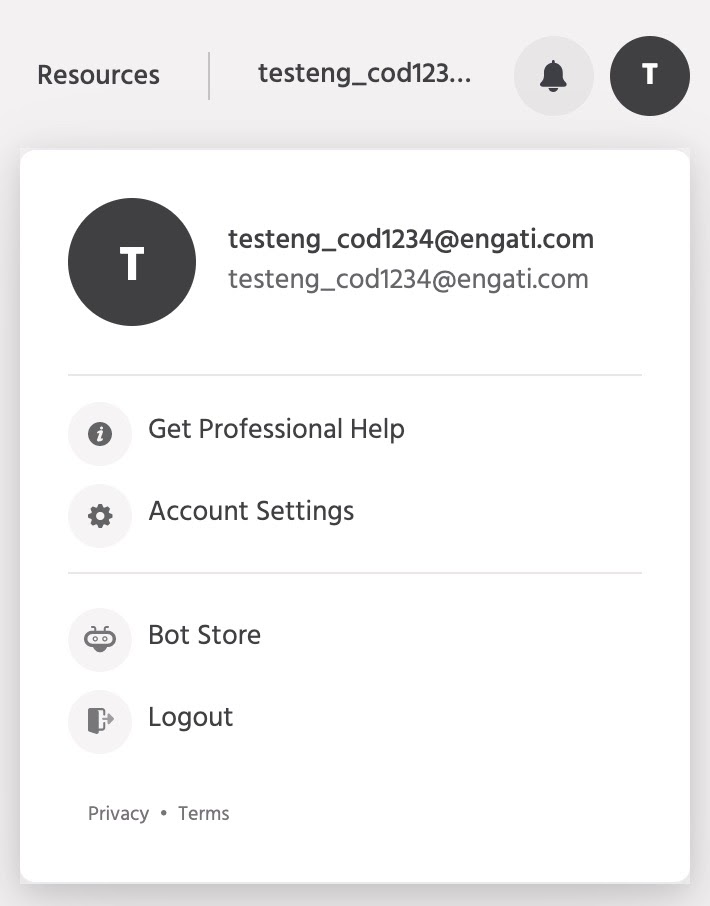
Getting started just got easier. Set up your solution with our interactive wizard that guides you through the process.
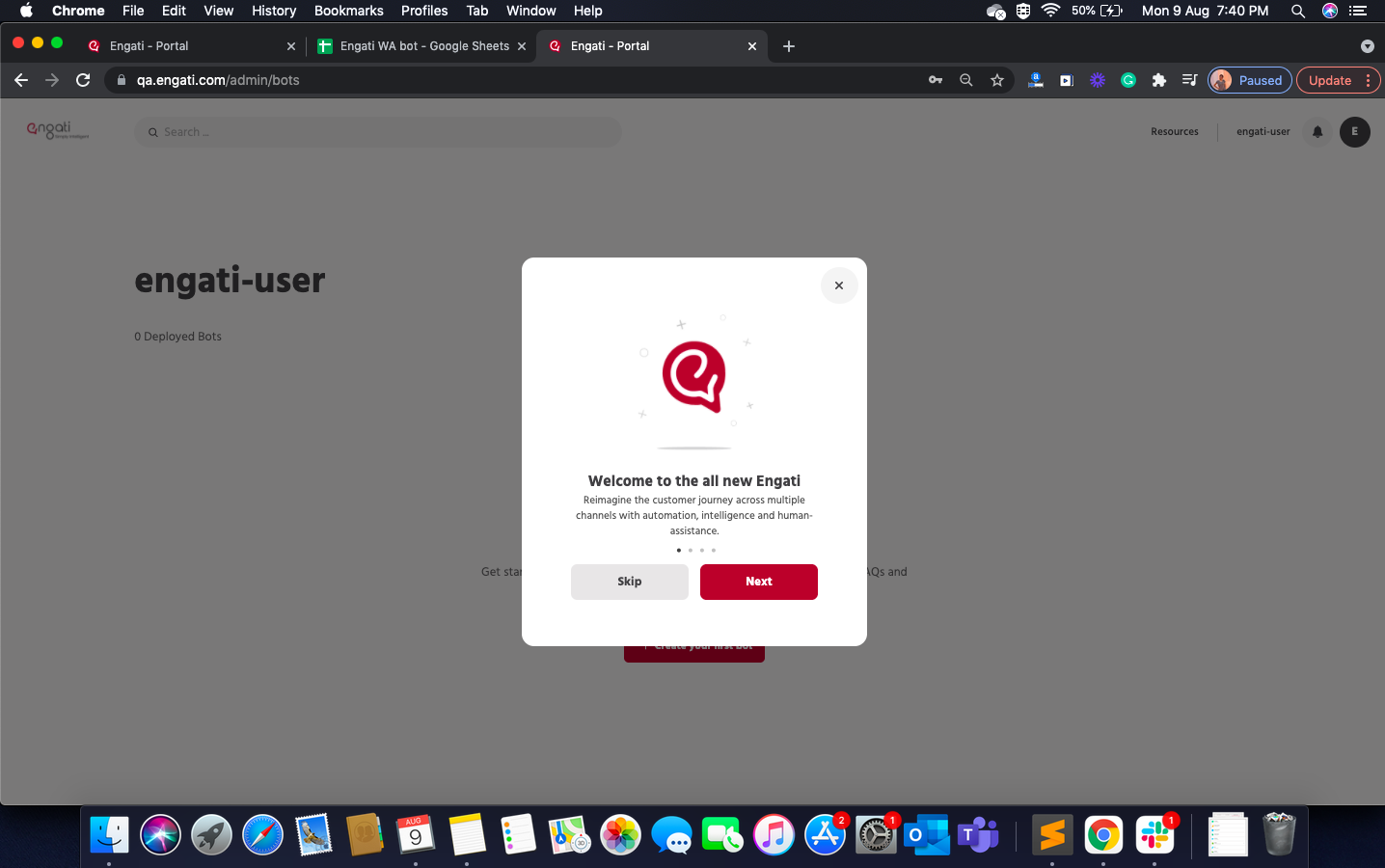
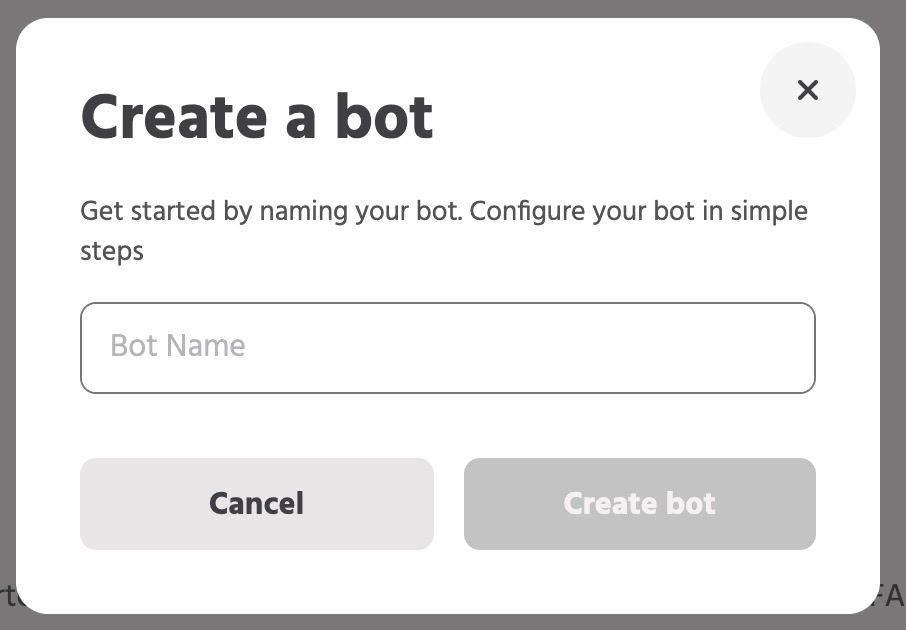
Clicking on the ‘Create your first bot’ button opens up a modal box – ‘Create bot’. Provide a bot name for reference and click on ‘Create bot’.
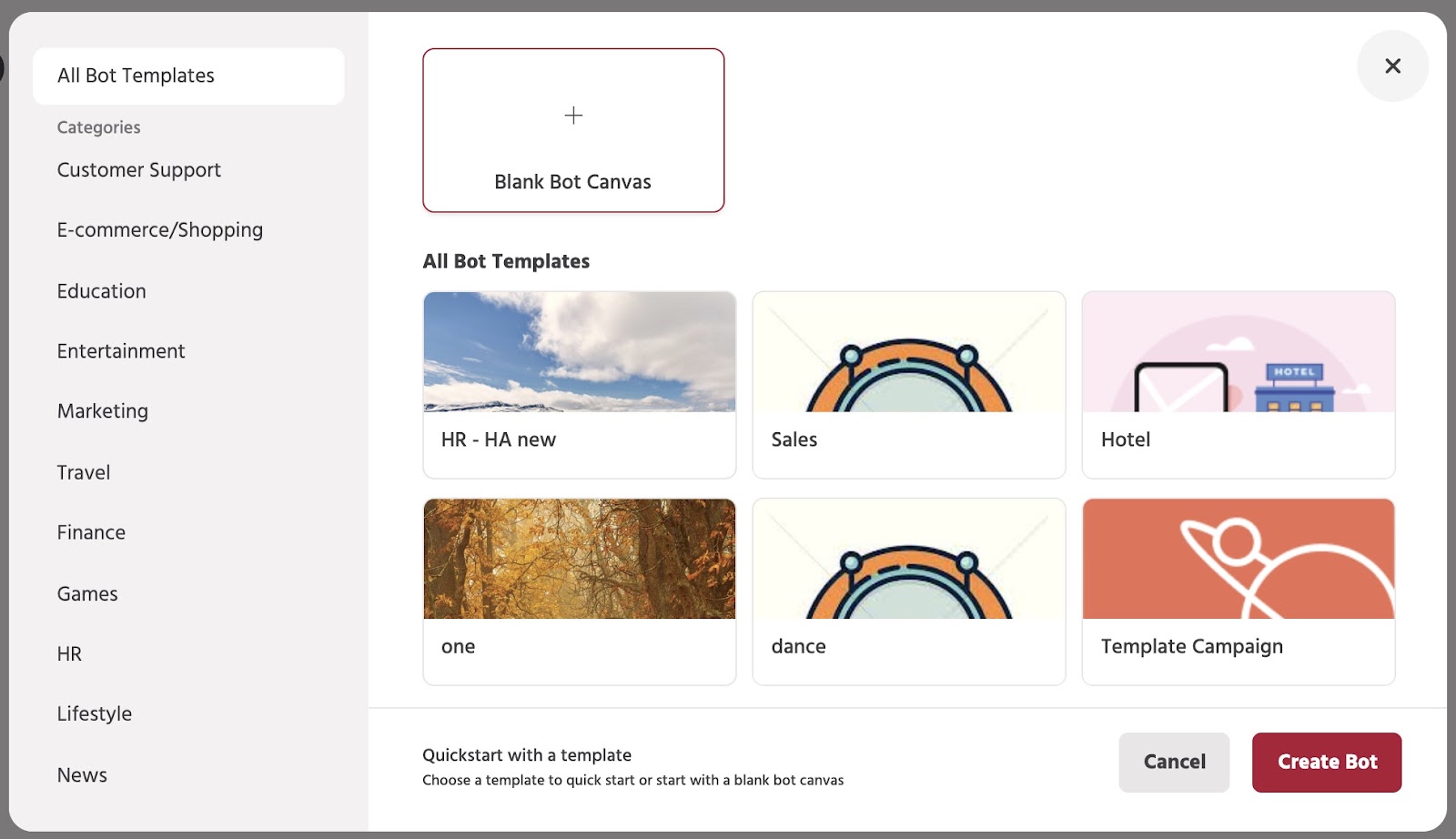
In the next step, multiple templates for the user journeys are displayed for selection. Pick one to kickstart your bot creation journey. If you are unsure or would like to start with a blank canvas start with ‘Blank Bot Canvas’ and click on ‘Create Bot’ to finalize the bot creation.
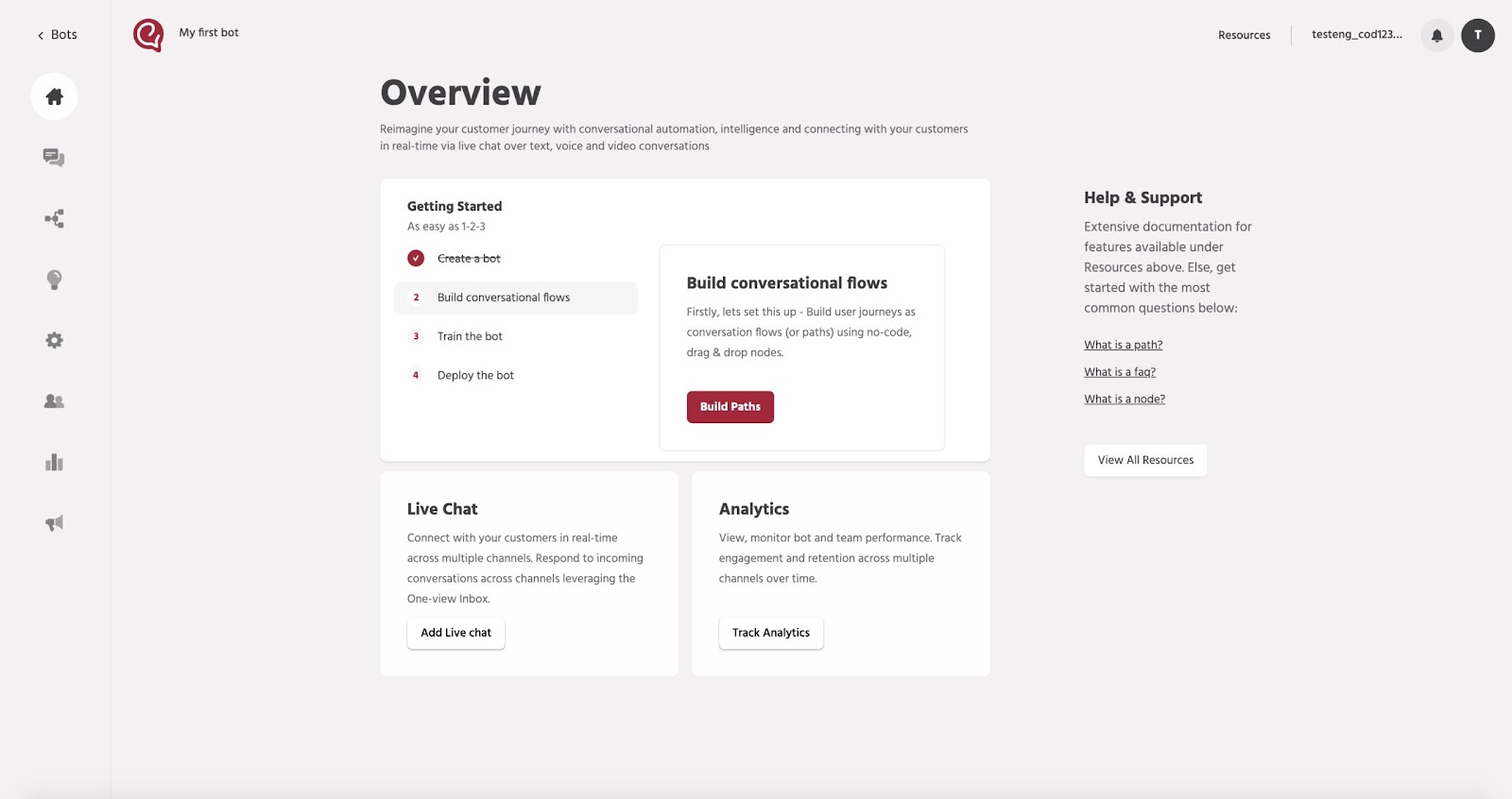
Once a bot has been created, you will be navigated to the Bot Overview page which provides guidance on the next steps. The remaining steps are as follows:
Attributes are used to store data entered by the user during the conversation that can be later transferred or used in various use-cases.
User attributes can also be used as variables for storing data related to a path execution. For example – email or username of a chatbot user, items ordered, quantity and delivery address for a pizza ordering bot and so on.
A user can perform the following functions for attributes.
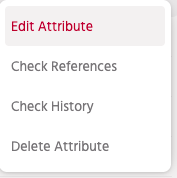
Edit Attribute: This allows you to change the name of the attribute and the validation message.
Check Reference: This displays the nodes in the chatbot where this attribute is being used.
Check History: This will fetch the list of changes done to the particular attribute with timestamp and the moderator.
Delete Attribute: You can delete a particular attribute and it will reflect in the Deleted Section.
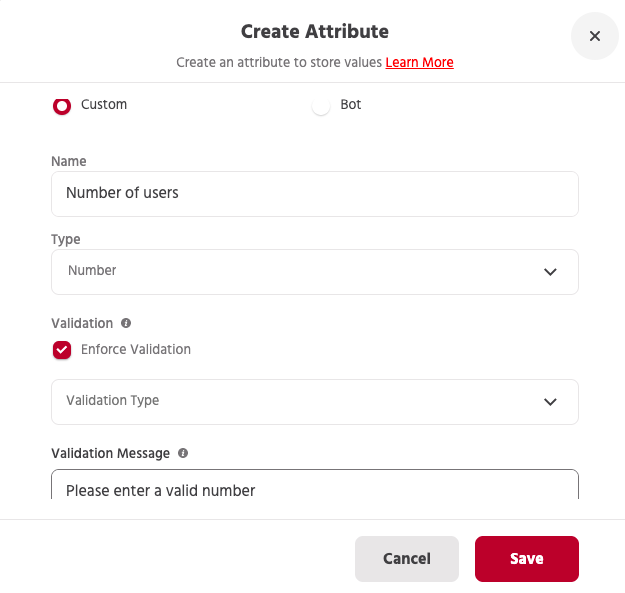
Add Attribute: You can introduce a new attribute for your product by this option, you can configure the type and validation message of the attribute.
Download : This option enables you to download data of your attributes and its type with other related data that can be used for auditing purposes by various organisations.
The Modern theme now supports dark mode to ensure you have a more enjoyable experience during those late nights.
Make the switch to the Modern theme and experience these features today!
Drive to Reimagine
We're so proud to announce that Engati has won the title for the Best Artificial Intelligence Driven Technology Solution of 2021 by the SIIA CODiE Awards.

Drive to Reimagine
Here's all of the behind-the-scenes updates on Engati's brand relaunch. We're uncovering our design philosophy behind the updated messaging, colors, and more.

Drive to Reimagine
Here are 10 chatbot features that you need to look out for if you're building a chatbot for your business. Make sure your chatbot has them all. Get the list now