How to Create WhatsApp Broadcast List in Just 5 Steps | 2025
SShubhangi SrivastavaJun 24, 20242-5 mins
How to create a WhatsApp Broadcast group in WhatsApp?
Step 1: Open WhatsApp
Launch the WhatsApp application on your smartphone.
Step 2: Go to the Chats Screen
Ensure you are on the main screen where your chats are listed.
Step 3: Open the Menu
On Android: Tap the three vertical dots in the top right corner.
On iPhone: Tap "Broadcast Lists" in the top left corner of the Chats screen.
Step 4: Create a New Broadcast List
On Android: Select "New broadcast" from the menu.
On iPhone: Tap "New List" at the bottom of the Broadcast Lists screen.
Step 5: Add Contacts and Create the List
Select the contacts you want to add to your broadcast list from your contact list. You can add multiple contacts by tapping on their names.
Once you have selected the desired contacts, tap the checkmark (on Android) or "Create" (on iPhone) to finalize the list.
Now, your broadcast list is created. You can start sending messages to this list, and the recipients will receive them as individual chats, without knowing who else is on the list.
How to send a broadcast message on WhatsApp?
Step 1: Open WhatsApp
Launch the WhatsApp application on your smartphone.
Step 2: Go to the Chats Screen
Ensure you are on the main screen where your chats are listed.
Step 3: Open Your Broadcast List
On Android: Tap the three vertical dots in the top right corner, then select "Broadcast Lists."
On iPhone: Tap "Broadcast Lists" in the top left corner of the Chats screen.
Step 4: Select a Broadcast List
Tap on the broadcast list you have already created to open it.
Step 5: Compose and Send Your Message
Type your message in the text field as you would in a regular chat.
Tap the send button to broadcast your message to all the contacts in the list.
Additional Notes:
Recipients Receive Messages Individually: Each recipient will receive your message as an individual chat, and replies will come back as individual messages.
Contacts Must Have Your Number Saved: Ensure that all recipients have your phone number saved in their contacts; otherwise, they won’t receive the broadcast message.
Editing a Broadcast List: You can always edit your broadcast list to add or remove contacts. Go to the broadcast list, tap the menu (three vertical dots on Android, "i" icon on iPhone), and select "Broadcast list info" to make changes.
By following these steps, you can easily send broadcast messages on WhatsApp.
How to create Broadcast list WhatsApp iPhone
Creating a WhatsApp Broadcast List on an iPhone is a straightforward process. Follow these steps:
Step 1: Open WhatsApp
Launch the WhatsApp application on your iPhone.
Step 2: Navigate to the Chats Screen
Make sure you are on the main Chats screen where all your conversations are listed.
Step 3: Open the Broadcast Lists
Tap "Broadcast Lists" in the top left corner of the Chats screen.
Step 4: Create a New List
Tap "New List" at the bottom of the Broadcast Lists screen.
Step 5: Add Contacts to the Broadcast List
Select the contacts you want to add to your broadcast list by tapping on their names.
Once you have selected all the desired contacts, tap "Create" in the top right corner.
Your broadcast list is now created, and you can start sending messages to this list. The messages will be sent individually to each contact, and their replies will come back as individual chats.
Additional Notes:
Broadcast List Limit: You can add up to 256 contacts to a single broadcast list.
Recipients Requirements: Ensure that all recipients have your phone number saved in their contacts to receive your broadcast messages.
Editing a Broadcast List: To add or remove contacts, go to the Broadcast Lists screen, tap the "i" icon next to the list you want to edit, and make your changes.
By following these steps, you can easily create and manage a WhatsApp Broadcast List on your iPhone.
How to create broadcast list WhatsApp Android?
Creating a broadcast list on WhatsApp for Android is a simple process. Here’s how to do it:
Step 1: Open WhatsApp
Launch the WhatsApp application on your Android device.
Step 2: Go to the Chats Screen
Make sure you are on the main screen where all your chats are listed.
Step 3: Open the Menu
Tap the three vertical dots in the top right corner to open the menu.
Step 4: Select New Broadcast
From the dropdown menu, select "New broadcast."
Step 5: Add Contacts to the Broadcast List
Select the contacts you want to add to your broadcast list by tapping on their names.
Once you have selected all the desired contacts, tap the checkmark icon in the bottom right corner to create the list.
Your broadcast list is now created. You can start sending messages to this list, and each recipient will receive the message as an individual chat.
Additional Notes:
Broadcast List Limit: You can add up to 256 contacts to a single broadcast list.
Recipients Requirements: Ensure that all recipients have your phone number saved in their contacts to receive your broadcast messages.
Editing a Broadcast List: To add or remove contacts, go to the Chats screen, tap the three vertical dots, select "Broadcast Lists," tap the list you want to edit, and make your changes.
By following these steps, you can easily create and manage a WhatsApp Broadcast List on your Android device.
Features of WhatsApp Broadcast Business by WhatsApp Web
WhatsApp Business provides several features for creating and managing broadcast lists through WhatsApp Web. Here are the key features:
1. Broadcast Lists
Creation and Management: You can create broadcast lists to send messages to multiple contacts at once. This is particularly useful for businesses that need to send updates, promotional whatsapp messages, or announcements.
Message Delivery: Messages sent via broadcast lists are delivered to each recipient as individual chats, preserving privacy. Recipients will not know who else received the message.
Contact Limit: You can add up to 256 contacts to a single broadcast list.
2. Personalized Messaging
Customization: Messages can be personalized with the recipient's name or other details to create a more personal connection.
Automation: Use templates for common messages to save time.
3. Message Statistics
Read Receipts: You can see which contacts have received and read your broadcast messages.
Analytics: Track the performance of your broadcast messages, including delivery and read rates.
4. Labeling and Organization
Contact Labels: Organize your contacts with labels (e.g., "New Customer," "Pending Payment") to easily manage and target your broadcasts.
Message Filters: Filter messages by labels to streamline your communication process.
5. Rich Media Support
Multimedia Messages: Send images, videos, documents, and other media types in your broadcast messages to make them more engaging.
Quick Replies: Use pre-defined replies for common questions to improve response times.
Custom Templates: Create and save custom templates for frequently sent messages.
7. Web Integration
Desktop Access: Manage and send broadcast messages directly from your computer using WhatsApp Web, making it easier to handle large volumes of messages.
Syncing: All messages and broadcast lists are synced across your devices, ensuring consistency and accessibility.
8. Compliance and Security
Encryption: All messages sent via WhatsApp, including broadcast messages, are end-to-end encrypted, ensuring privacy and security.
Compliance: WhatsApp Business adheres to various compliance regulations, helping businesses maintain communication standards.
Convert leads with Whatsapp Broadcast
How to Create a Broadcast List on WhatsApp Web
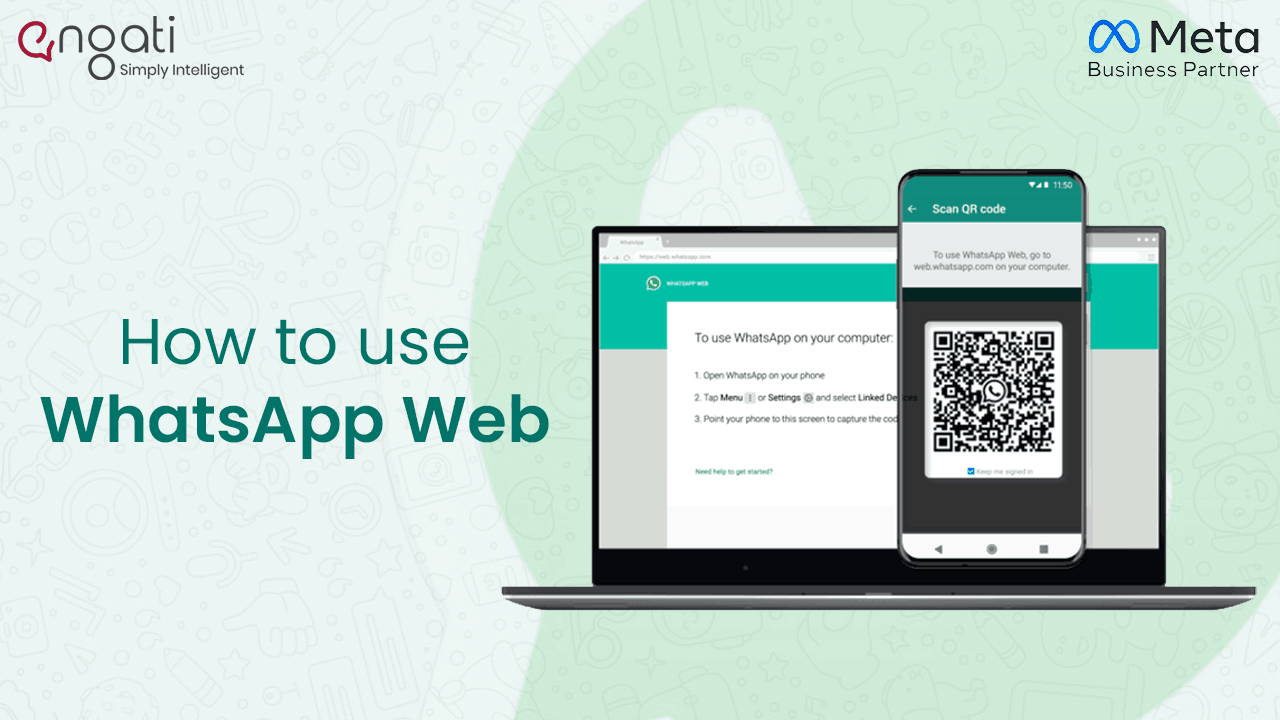
Open WhatsApp Web: Go to web.whatsapp.com and scan the QR code with your WhatsApp Business mobile app.
Go to Broadcast Lists: Click on the three dots (menu) in the top left corner of the WhatsApp Web interface.
Select New Broadcast: Click on "New Broadcast" from the dropdown menu.
Add Contacts: Select the contacts you want to add to your broadcast list by clicking on their names.
Create the List: Click on the checkmark or "Create" button to finalize your broadcast list.
By utilizing these features, businesses can efficiently manage their communication, improve customer engagement, and streamline their messaging processes using WhatsApp Business via WhatsApp Web.
Limitations of WhatsApp Broadcast List
While WhatsApp Broadcast Lists are a useful feature for reaching multiple contacts simultaneously, they do come with several limitations. Here are some of the key limitations:
1. Contact Limit
Maximum Contacts: You can add up to 256 contacts to a single broadcast list. This limit can be restrictive for businesses with a large customer base.
2. Recipient Privacy
No Visibility: Recipients are not aware that the message is part of a broadcast list. They see the message as a regular, individual chat, which can lead to confusion if the message implies group involvement.
3. Recipient Requirements
Saved Contacts: Recipients must have your phone number saved in their contacts to receive the broadcast message. If they do not, they will not receive the broadcast, limiting reach.
4. Message Personalization
Lack of Personalization: Broadcast messages are sent uniformly to all recipients. There is no built-in feature to personalize each message within the broadcast list, making the communication less personal.
5. Two-way Interaction
Individual Responses: Recipients’ replies to broadcast messages come back as individual chats. This can create a high volume of separate conversations that need to be managed individually, rather than in a group format.
6. Analytics and Tracking
Limited Analytics: While you can see which contacts have received and read your broadcast messages, the analytics provided are basic. There is no advanced tracking or reporting feature for broadcast lists.
7. Rich Media Limitations
Message Types: Although you can send multimedia messages (images, videos, documents), some advanced message types and interactive features available in other messaging platforms may not be supported.
8. No Group Interaction
No Group Dynamics: Unlike group chats, broadcast lists do not facilitate group interaction. Each recipient’s reply is private and not visible to other members of the broadcast list, limiting community engagement.
9. Regulatory Compliance
Compliance Issues: Depending on your region and the nature of your business, using broadcast lists for unsolicited marketing could lead to compliance issues with data protection and privacy laws.
10. Management Overhead
Manual Management: Managing and updating broadcast lists can be cumbersome, especially if you need to frequently add or remove contacts or create different lists for different purposes.
11. Delivery Confirmation
Delivery Reliability: There is no guarantee that all messages will be delivered if recipients do not have an active internet connection or if there are issues with WhatsApp’s service at the time of sending.
12. Use Restrictions
Platform-Specific: Broadcast lists must be managed on the platform where they were created. For instance, lists created on the mobile app can’t be directly edited on WhatsApp Web.
Conclusion
While WhatsApp Broadcast Lists can be effective for certain types of communication, they have several limitations that may affect their suitability for large-scale or highly personalized marketing and communication efforts. Businesses need to weigh these limitations against their specific needs and consider complementary communication tools or platforms where necessary.